Lesson 9 of 147 min read
The driver app: a technician’s day
How technicians get the driver app on their phone, work each stop, text customers, take photos, record every bin, sign up neighbors and track tips and hours.
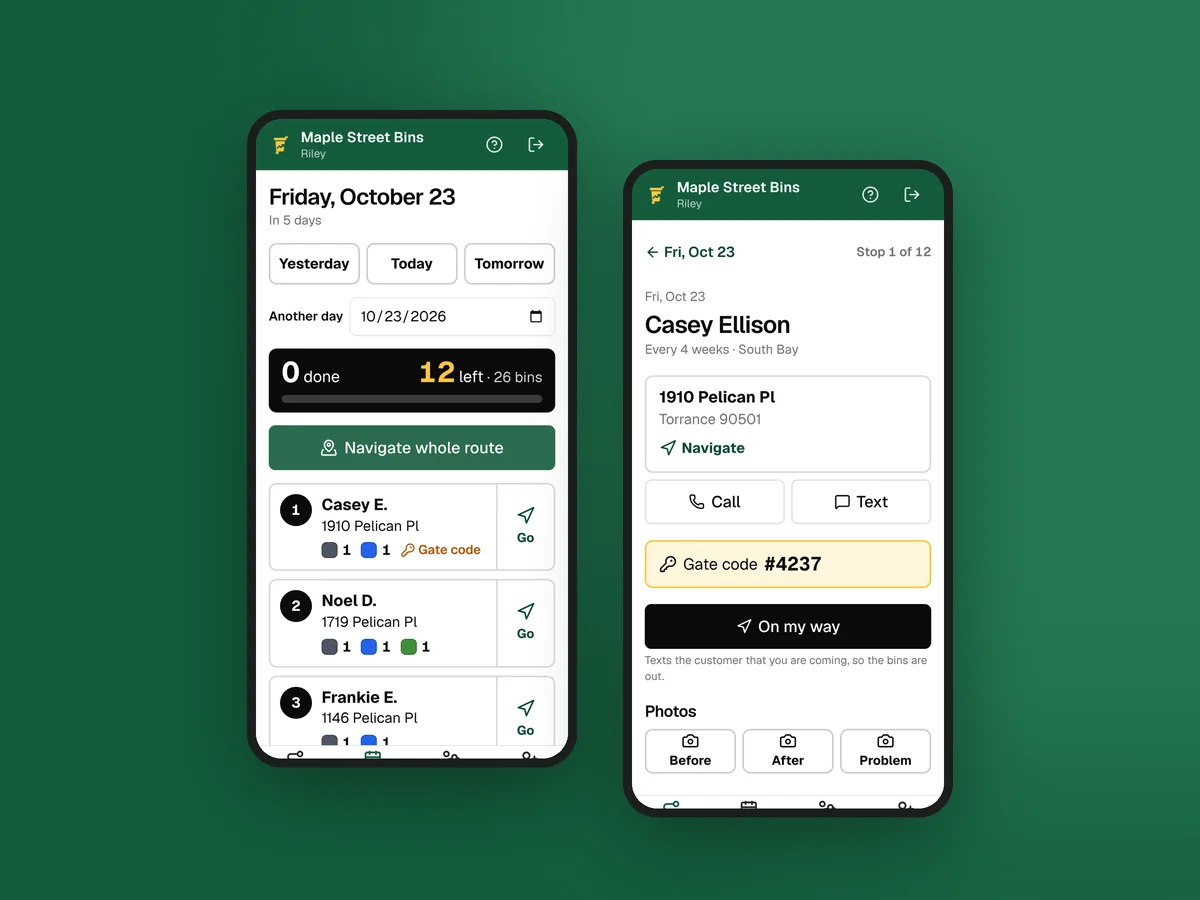
The driver app is the part of Clean Bin System your technicians use all day. It shows the stops in order, gets them to each one and records what they cleaned. Every message a customer gets on cleaning day starts with a tap in it, so when the taps are right, there’s little office work left after a route.
The screens are from the phone of Riley, a technician at Maple Street Bins, a sample business with made-up customers.
Getting it on a phone
You invite technicians from Business › Team (Lesson 14). They get an email, and a text if you added their mobile number, with a link to set a password. It works for 7 days.
There’s nothing to download from an app store. The technician opens the app in their phone’s browser and adds it to the home screen:
- iPhone, in Safari: tap Share, then “Add to Home Screen”.
- Android, in Chrome: tap the menu, then “Add to Home screen” or “Install app”.
The icon is called Route and opens straight to today’s route. Owners and office managers open the same app from Routes › Driver app. Your plan sets how many technicians you can have: Starter includes 1 technician, Growth up to 4 technicians and Pro any number of technicians. Sales reps don’t use a spot.
The day’s route
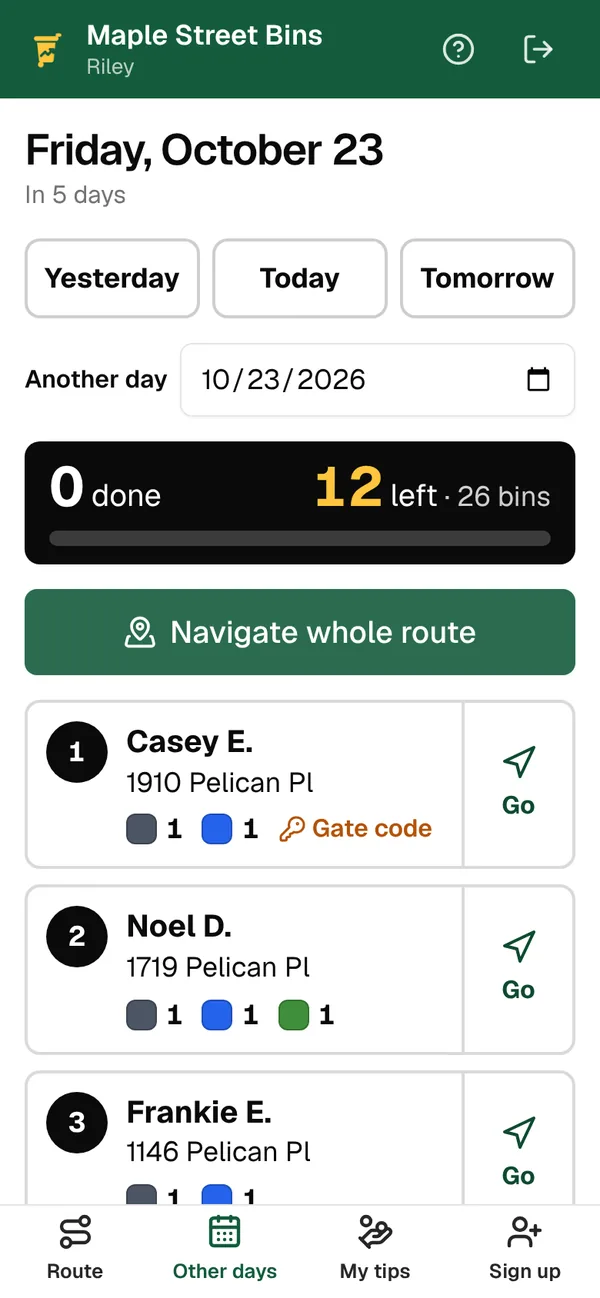
The Route tab opens with a greeting and the time clock. Under them are the totals, like “12 left · 26 bins”, a Navigate whole route button and the stops in the order the office set. Each row shows the customer as “Casey E.”, the street, a square for each kind of bin, and Gate code or Notes flags. Other days shows any other date.
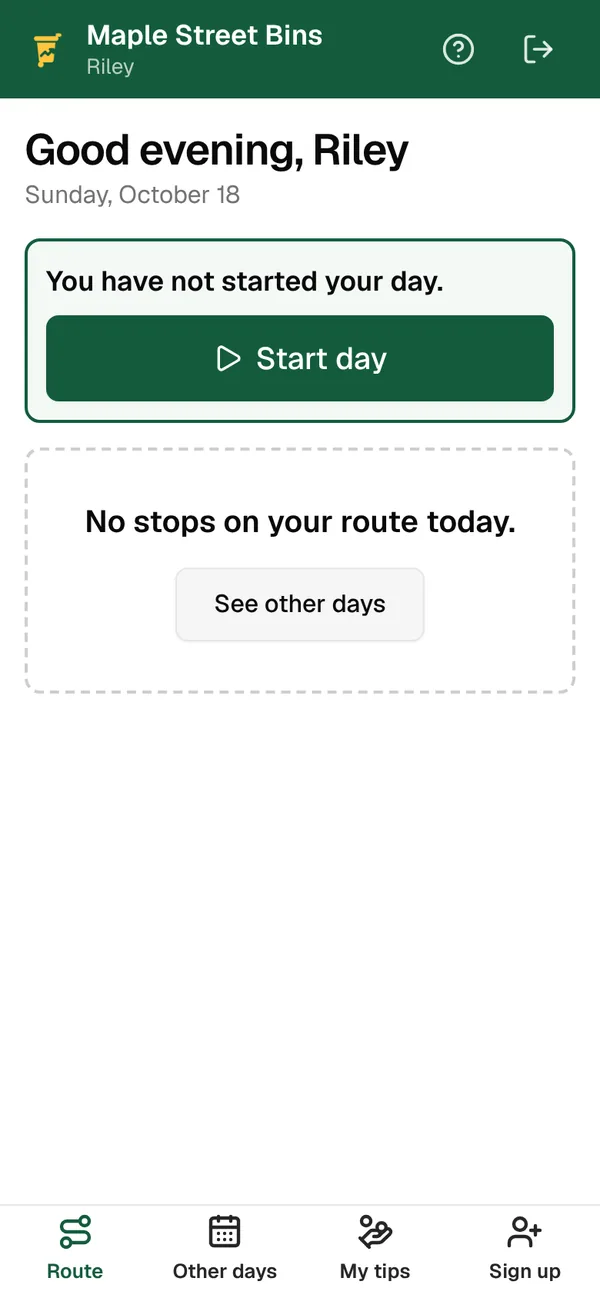
The office sets the order in Dispatch (Lesson 8), and the app can’t change it. That keeps one plan for the day, and the time estimates match what the technician drives.
Navigate whole route opens Google Maps with directions through the open stops, 21 at a time. Go on a row gives directions to one stop.
A stop, top to bottom
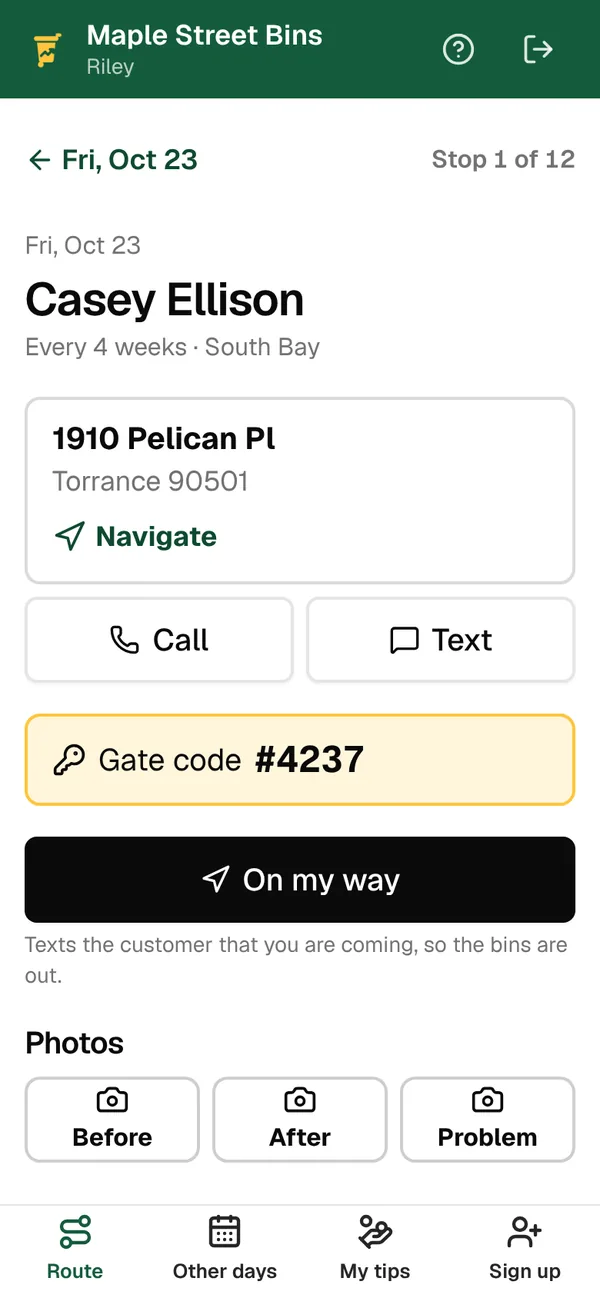
A stop opens with the address and Navigate, plus Call and Text buttons that use the technician’s own phone. A yellow box holds the gate code, where the bins are kept and any note the office pinned on the customer. Below come On my way, the photo buttons and the bins.
On my way
The text reads like this: “Maple Street Bins: Riley is on the way to clean your bins. Please make sure they are at the curb.” It only goes to customers who agreed to texts, there’s no email version, and during quiet hours it waits.
A cart that isn’t out is a wasted stop. The day-before reminder does most of the work; The Bin Trash Spa in Reno credits its day-before text with getting bins left out (keeping customers). On my way is the last nudge, while there’s still time to roll a cart back out.
Photos
Before, After and Problem photos show in the customer’s account under Recent cleanings, up to four per cleaning, and the “cleaning done” email links to them. The office sees them on the customer’s page. Photos settle most complaints: a before and after answers “you didn’t clean it” and “you cracked it.”
Watch out: Customers see every photo, Problem photos included. Shoot the cart, the crack or the car blocking it, and keep neighbors and faces out of the frame.
Each bin’s result
Every bin starts on Cleaned. Change only the ones you couldn’t do: Not out, Blocked or Damaged. Note about the garbage is for the office, like “Lid cracked”. The Note under the boxes is for the customer, who sees it only when something wasn’t cleaned. Then tap Finish stop, and the next stop opens.
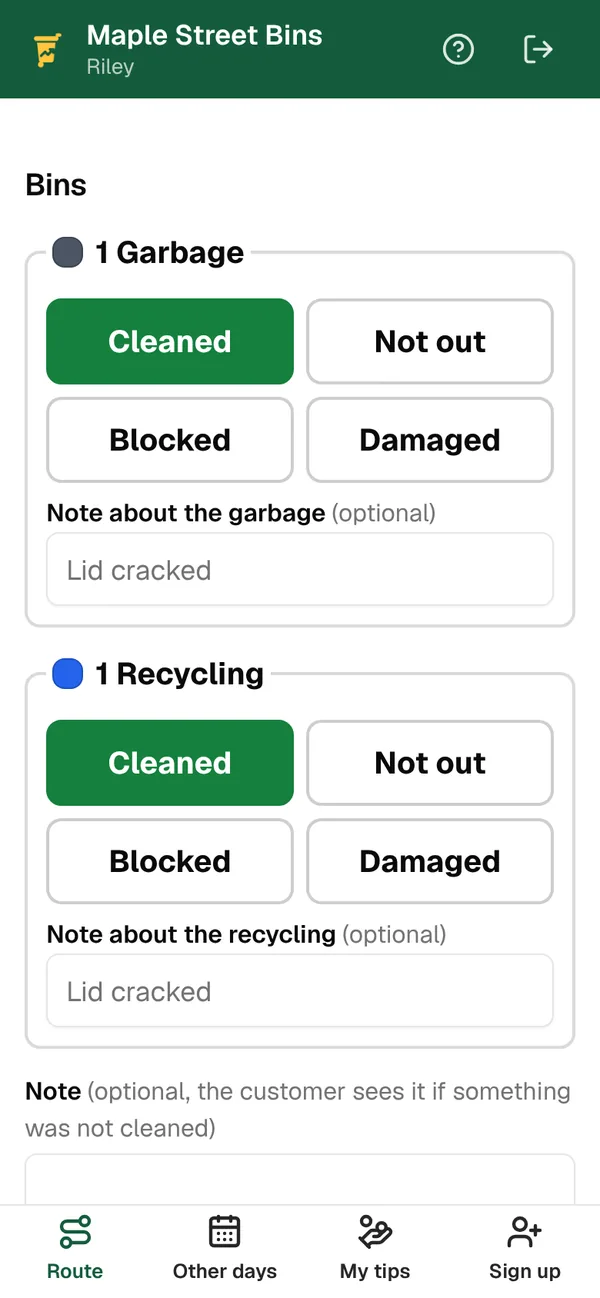
What the customer gets when you finish
| You marked | The stop becomes | The customer gets |
|---|---|---|
| Every bin Cleaned | Done | The “cleaning done” text and email, with the after photos, your review link and a tip link |
| Some bins Cleaned | Partly cleaned | “We stopped by today but could not clean everything,” with each bin’s result and your note |
| No bins Cleaned | Not cleaned | The same message |
In that message, Not out reads “not at the curb”, Blocked “blocked or not reachable” and Damaged “damaged, not cleaned”. If you bill after each cleaning, finishing also charges the card, except on Not cleaned stops.
So the result is the customer’s record, their message and sometimes their charge. Leaving a bin on Cleaned when it wasn’t out sends “clean and sanitized” to someone looking at a dirty cart.
Example: At 859 Pelican Pl the recycling isn’t out. Leave Garbage on Cleaned, tap Not out on Recycling and type “Leave it out next time and we’ll clean it on our next visit.” The customer reads that the garbage was cleaned and the recycling wasn’t at the curb, with your note.
Tapped the wrong thing? Open the finished stop, fix it under Change the result and tap Save the new result. No second message goes out.
Signing up a neighbor at the curb
Neighbors watch you clean the cart next door, and the startup course says that’s where door hangers work best: around your customers, on cleaning day (first customers). The Sign up tab turns that moment into a customer in five steps:
- Address: tap Check address to see the zone, or a note that it’s outside your zones or already has a plan.
- Plan: office-only plans are listed too.
- Bins and trash day, with the price as you go. Technicians can pick Clean now to clean today, or Schedule it.
- Customer: a first name, plus a mobile number or email. Tick The customer agrees to texts only when they say yes.
- Card: with Stripe, tap Create account, then add card and the customer types their card on Stripe’s form.
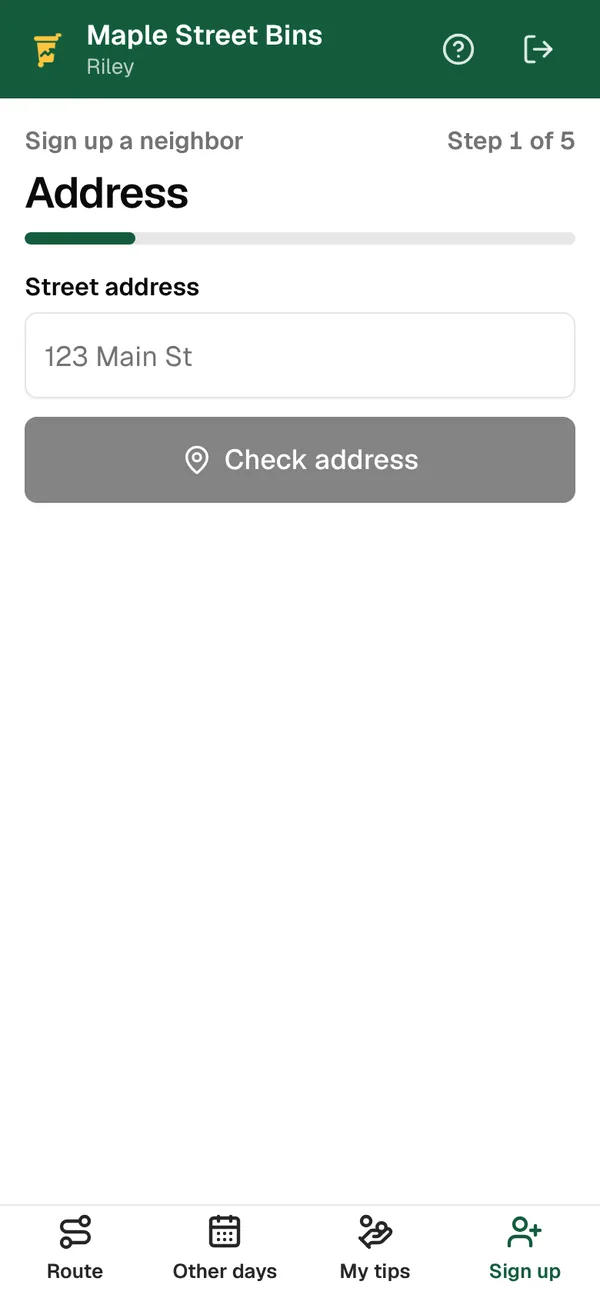
With Clean now, today’s cleaning goes at the end of your route. The customer gets a welcome email, and the source is saved as “Door to door”. A neighbor on a street you already clean is a stop with almost no driving. Lesson 12 covers door-to-door selling with sales reps.
Watch out: Nothing is saved until the last step, so a page reload starts over. Finish each sign-up in one go.
Tips
When tips are on (Lesson 7), the “cleaning done” message has a tip link, and 100% of each tip goes to the technician. My tips shows what’s waiting to be paid out, recent tips and past payouts, and each tip emails the technician too.
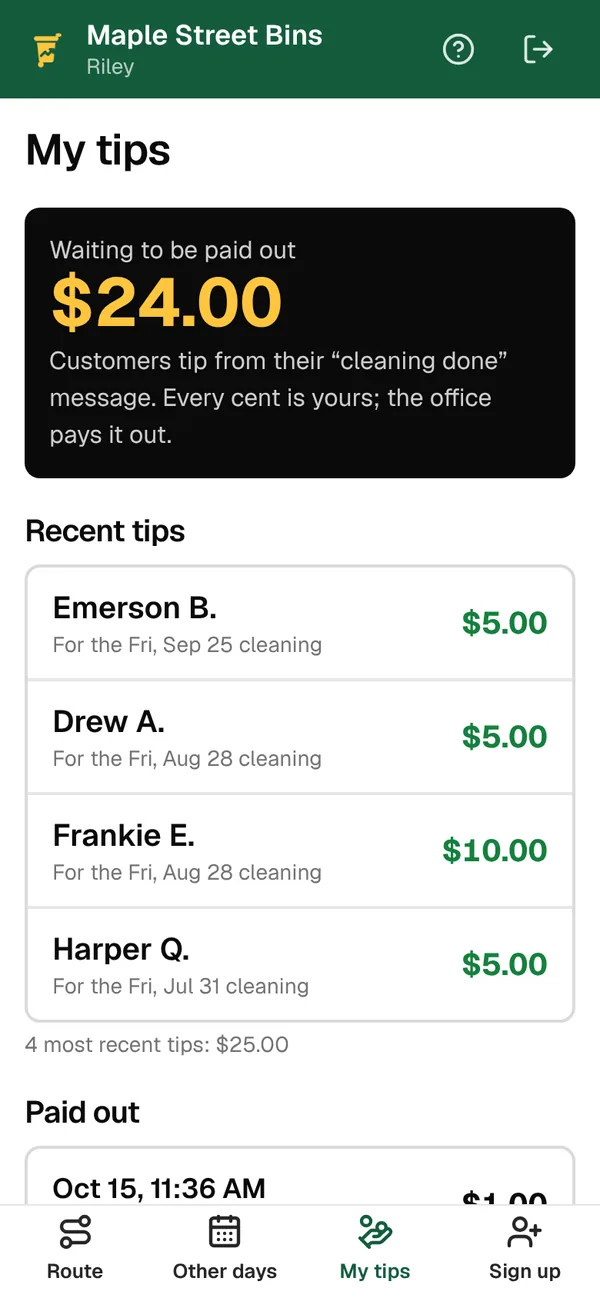
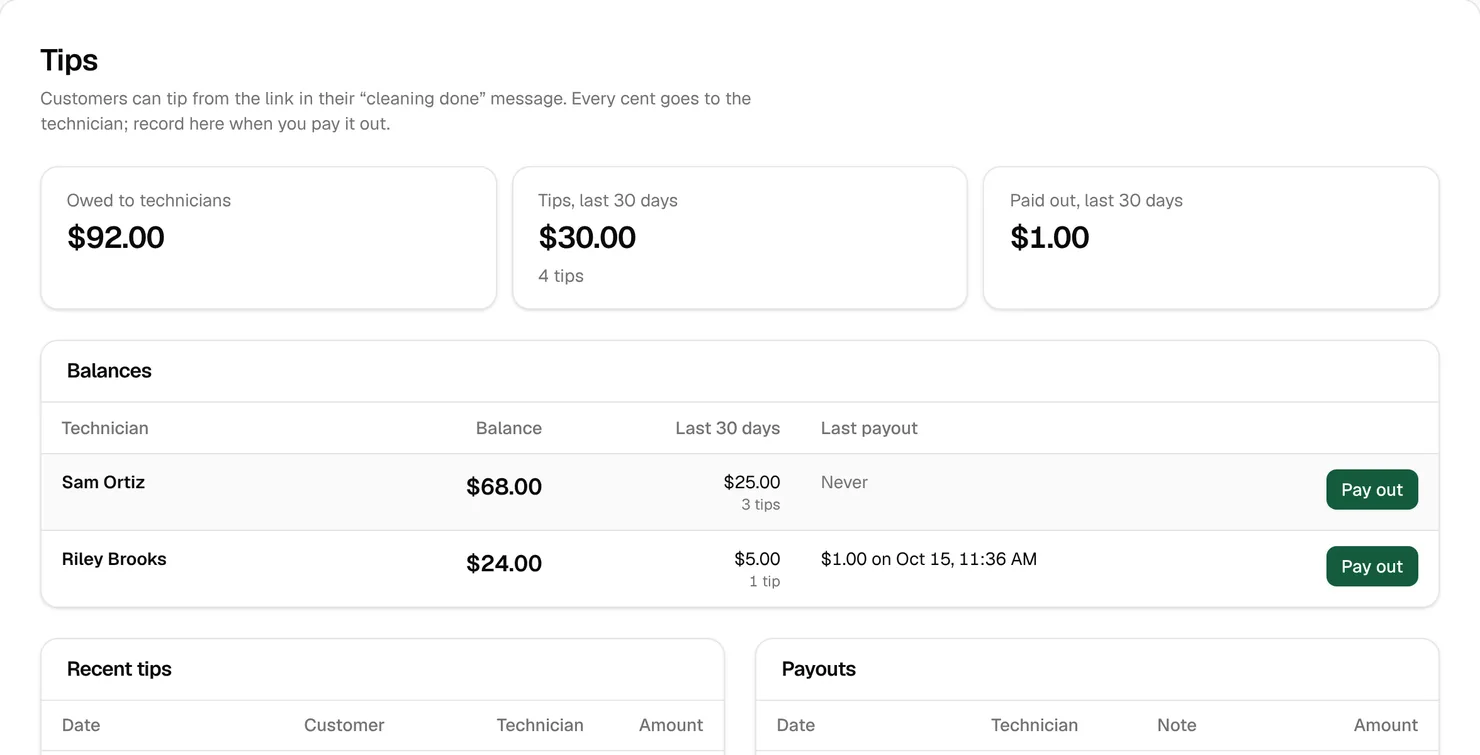
The office pays tips its usual way, on payroll or in cash, then records it in Money › Tips: click Pay out, enter the Amount paid and a Note like “Added to Friday payroll”, and click Record payout. Recording moves no money. It keeps the balance true, so nobody has to ask what they’re owed.
The time clock
The box at the top of the Route tab is the time clock: Start day, Lunch and End lunch, Break and End break, and End day, which asks Yes, end my day first. There’s one lunch a day and any number of breaks. An ended day can’t be restarted.
The office sees each day’s hours, minus lunch and breaks, next to stops done on the Time clock tab of Business › Team, with a CSV for payroll (Lesson 14). Route technicians are usually hourly; 2026 job ads paid about $16 to $22 an hour (hiring lesson). The clock is your payroll record.
Watch out: A day that’s never ended keeps counting hours. Make End day part of the last stop.
Key takeaways
- Technicians add the driver app to their home screen from the browser. There’s nothing to install.
- The office sets the stop order. On my way texts customers who agreed to texts, so bins are out when you arrive.
- Every bin starts on Cleaned. Mark the ones that weren’t: the result decides the customer’s message and sometimes their charge.
- The Sign up tab signs up a neighbor at the curb, and Clean now cleans their bins the same day.
- Tips and hours are recorded as the day goes: My tips for technicians, the time clock for payroll.
FAQ
Do technicians need to download an app?
No. They open the driver app in Safari or Chrome and add it to the home screen. The icon is called Route.
Can a technician change the order of their stops?
No. The office sets it in Routes › Dispatch, and the app follows it.
Why didn’t a customer get the on-my-way text?
They may not have agreed to texts, or they replied STOP. During quiet hours the text waits, and in test mode no texts are sent.
Does the driver app track where my technicians are?
No. It doesn’t track location. Start and end times come from the time clock.