Lesson 11 of 147 min read
Texts and emails that go out on their own
The texts and emails Clean Bin System sends for you, how to reword them, getting your texting number approved, consent and STOP, replies and announcements.
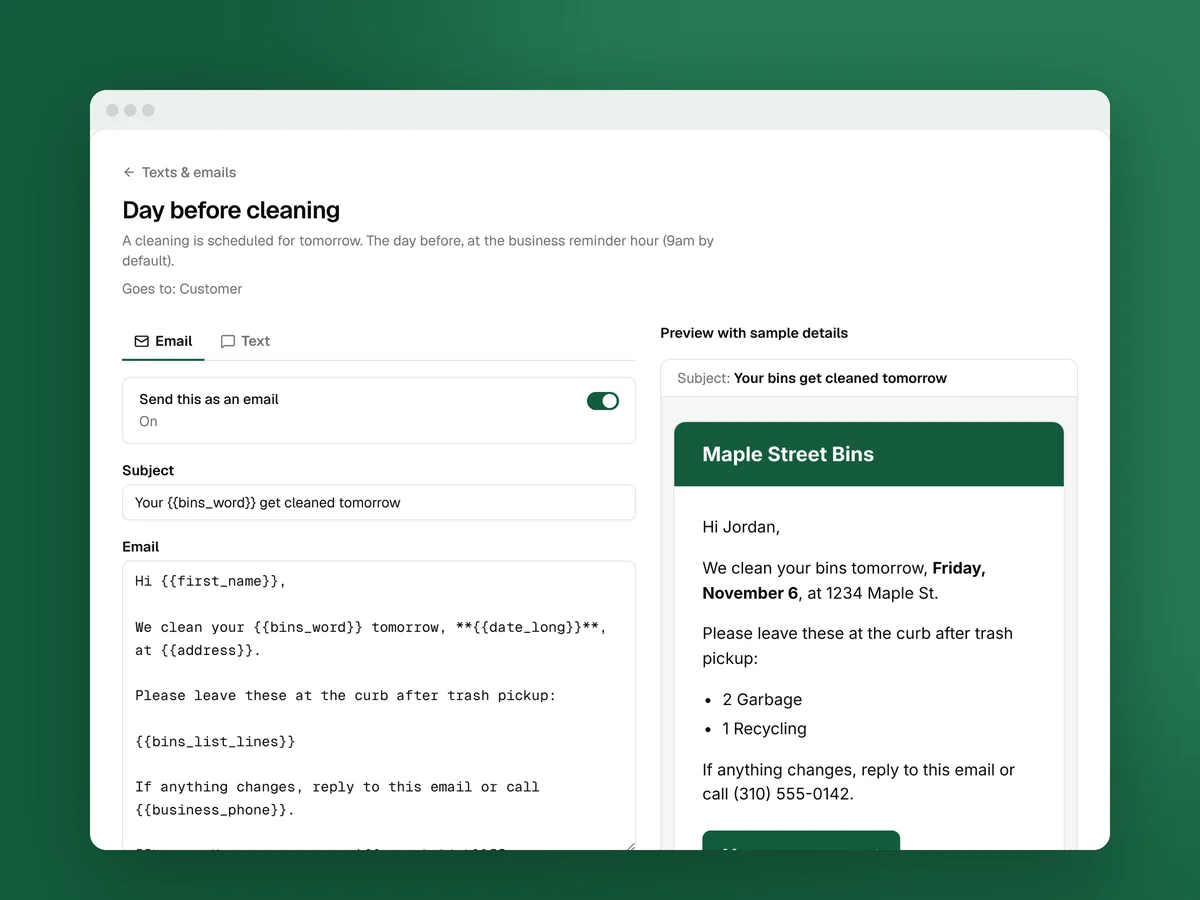
A bin cleaning business runs on short messages: the reminder the day before, “we’re on the way”, “all done”, “your card didn’t go through”. Clean Bin System sends 59 texts and emails like these on its own, each one set off by something that happens on the route or in billing.
Your part is short: read them once, make the important ones sound like you, get your texting number approved early, and answer the texts customers send back.
Where the messages live
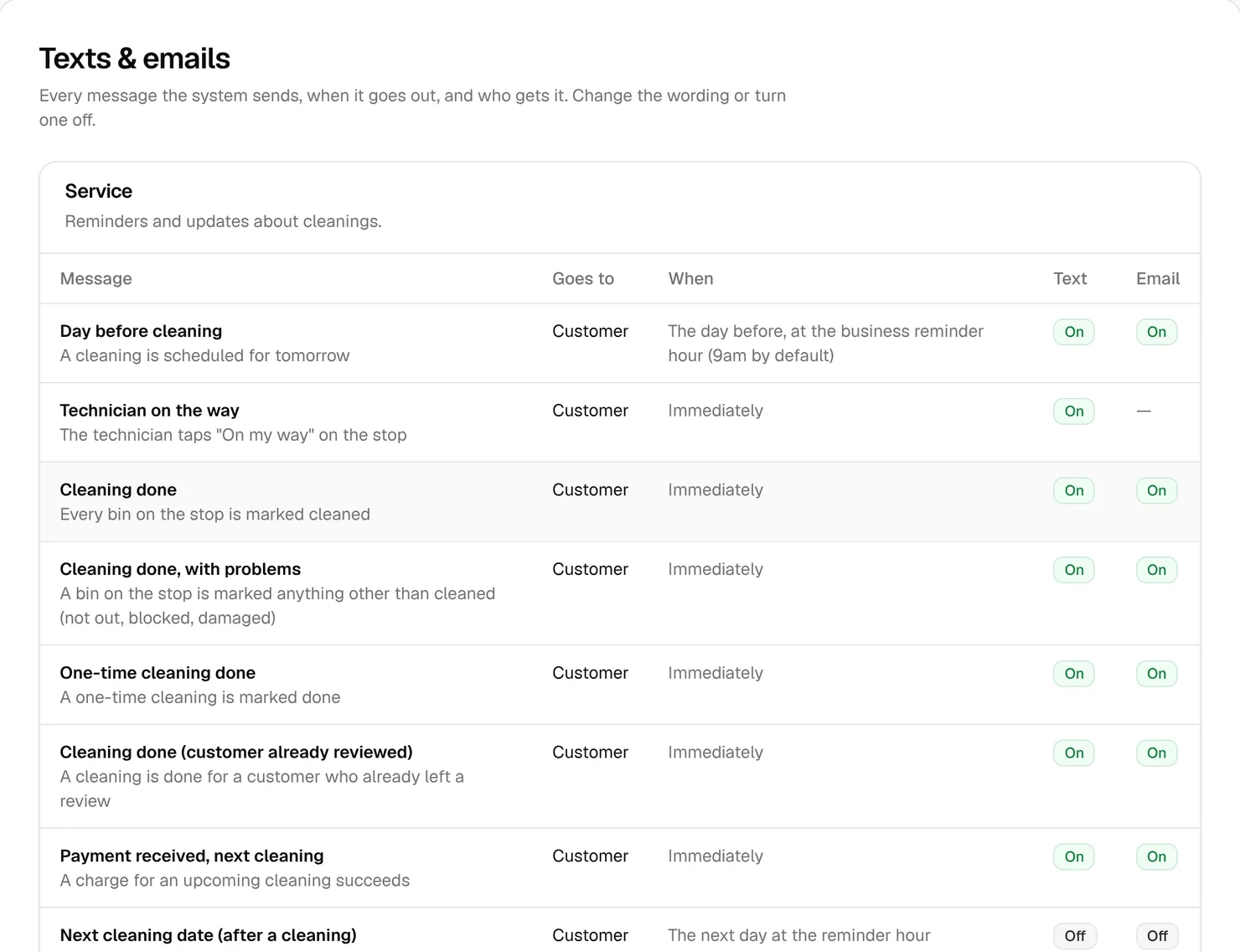
Open Messages › Texts & emails. The messages sit in five panels: Service, Billing, Account, Marketing and To your team. Each row says who it Goes to, When it goes out, and whether its Text and Email versions are on. Edited marks a message you’ve changed. Always on marks one you can reword but not switch off, like Card charge failed.
The ones that do the most work
| Message | When it goes out | Why it matters |
|---|---|---|
| Day before cleaning | The day before, at 9 am unless you change it | It lists the bins to leave out. A bin that isn’t out can’t be cleaned. |
| Technician on the way | When the technician taps On my way | A last nudge to roll the bins out. |
| Cleaning done | When every bin on the stop is marked cleaned | Proof, plus your review link and a tip link. |
| Cleaning done, with problems | When a bin is marked not out, blocked or damaged | Explains what happened before the customer calls. |
| Card charge failed | Right away, then 1, 2, 4, 7, 10, 15 and 20 days later, then monthly | Each one carries a link to update the card. |
| Unfinished sign-up | 20 minutes after someone stops booking, then 24 and 72 hours later | Brings back people who got distracted. |
| One-time win-back | 75 days after a one-time cleaning | Asks them back when the smell returns. |
The startup course’s keeping-customers lesson explains why these few carry the business: the reminder gets carts left out, failed-card reminders pay for themselves fast, and 75 days after a one-time clean is when the smell comes back. A few messages start switched off, like Next cleaning date (after a cleaning) and the later review asks. Turn them on if you want them.
Make them sound like you
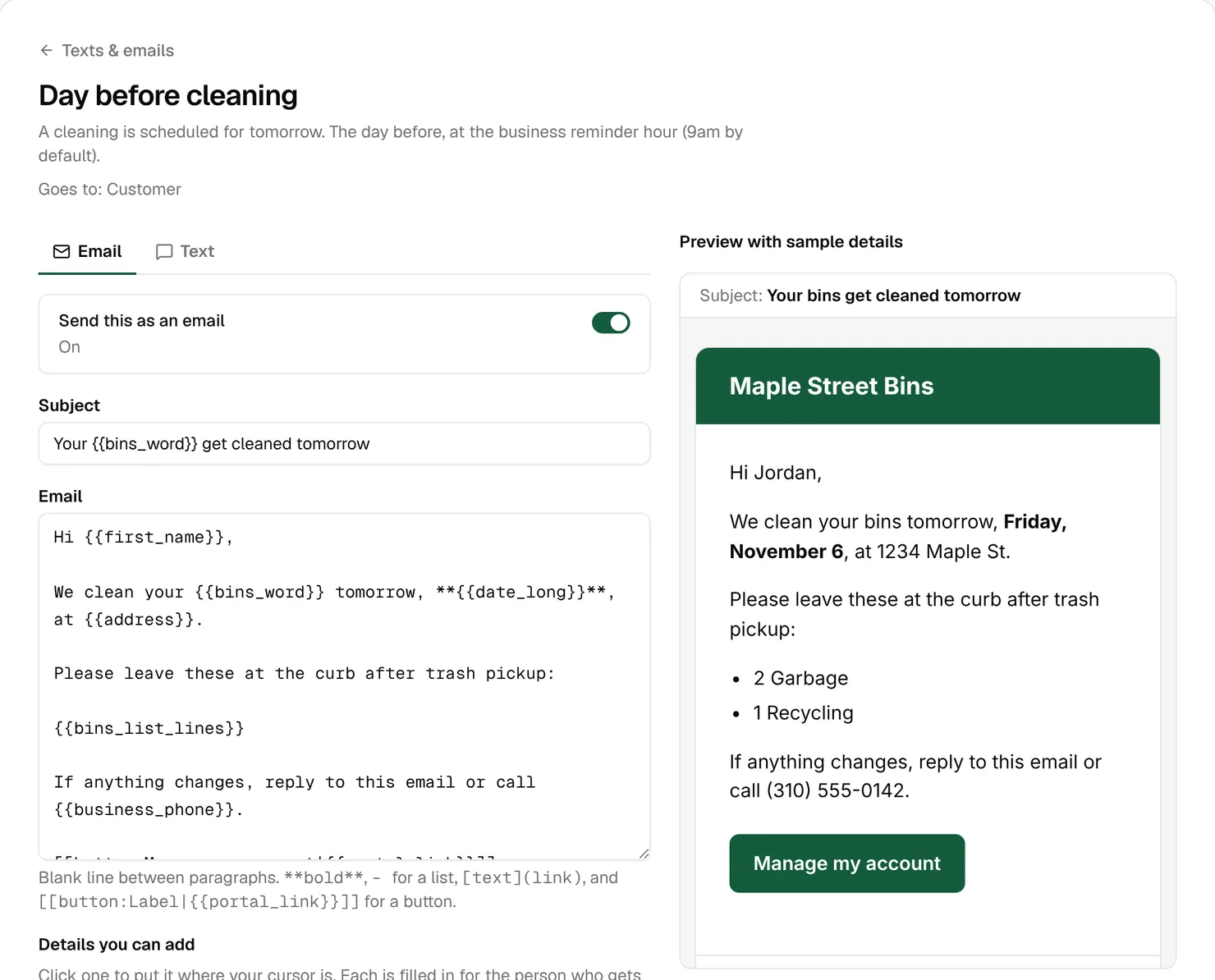
- In Messages › Texts & emails, click a message, like Day before cleaning.
- Pick the Email or Text tab. Send this as an email or Send this as a text turns that version on or off.
- Change the wording. Details you can add drops in a detail like
{{first_name}}or{{date}}, filled in for each person. - Check Preview with sample details, which uses a made-up customer.
- Click Save changes, then Send me a test to see it on your own phone and email.
While you write:
{{portal_link}}signs the customer into their account for 7 days without a password, so they can skip or move a cleaning themselves.- A text holds 160 characters. Longer ones go out in parts of 153, and each part counts as a text on your plan. One emoji drops the limit to 70. The preview counts for you.
- Every built-in text names your business, most of them right at the start, so people know who it’s from. Keep your name in when you reword one: carriers look for it.
Example: The built-in day-before text ends with “Questions?” and your phone number. Add the sign-in link and customers can skip or move the cleaning themselves: one less call, and one less stop where the bins aren’t out.
Tip: Reword Day before cleaning and Cleaning done before you apply for your texting number, because carriers get those two texts as your samples. Reset to default always puts the built-in wording back.
Get your texting number approved early
Texts go out from your own toll-free number once phone carriers approve it. That usually takes a few days and can take two weeks. Until then, texts are saved in Messages › Sent messages as “Test mode”, and emails go out as normal.
- Open Business › Settings › Texting.
- Fill in your legal business name and address exactly as registered, a contact person, and Texts a month, about. Plan on 3 to 4 per customer per cleaning. Sole proprietors can leave EIN empty.
- Click Get my number and submit it, or Send my details if that’s the button you see.
- Click Check approval now every few days. Approval isn’t checked any other way.
- Once it’s approved, check that Send texts is on, and put your cell number in Forward customer replies to.
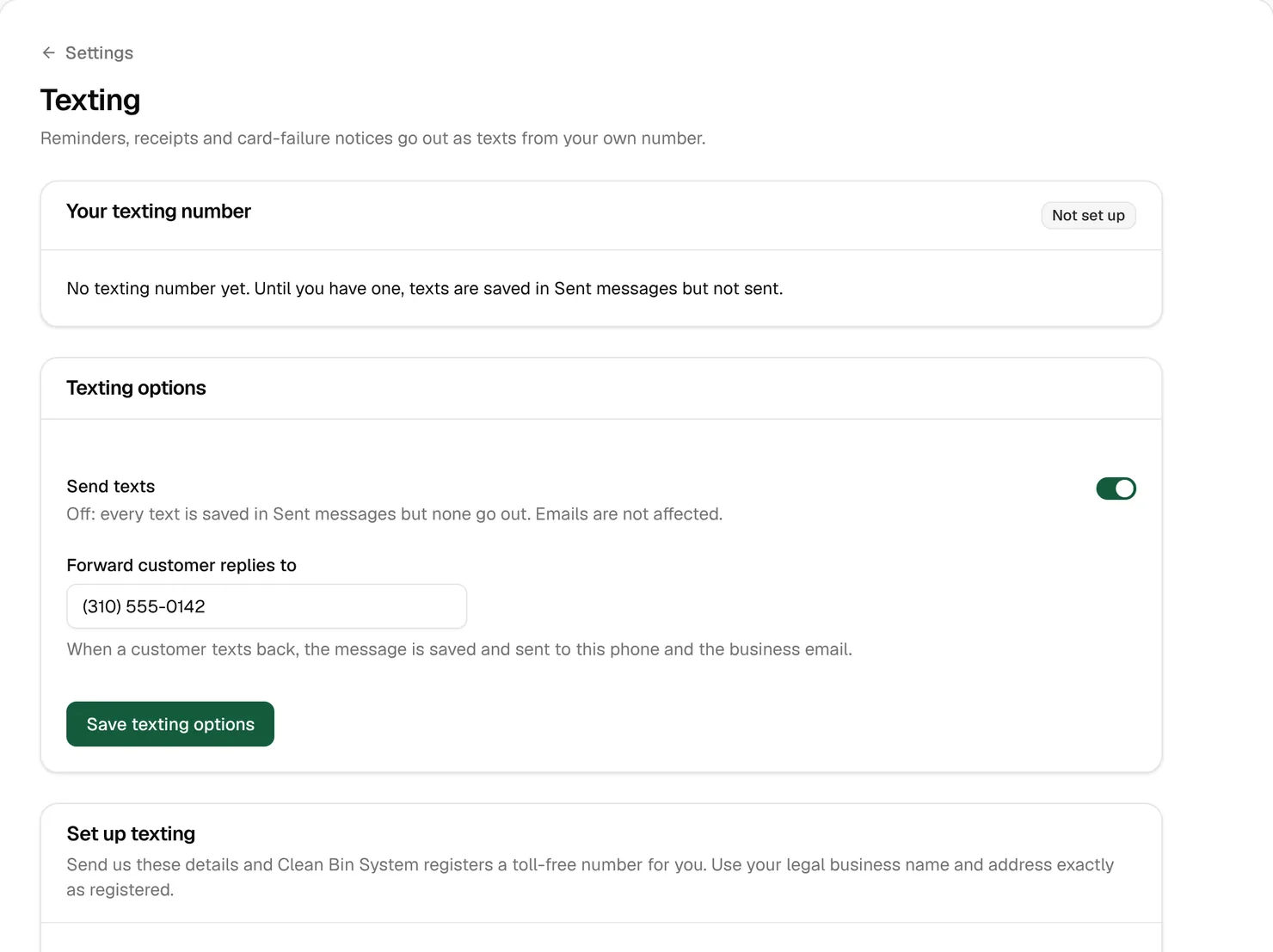
Start this on day one (Lesson 2). Carriers block texts from unregistered business numbers, and your details lock once you submit.
The rules it follows for you
- Consent. Texts only go to customers who ticked the text box when they signed up, or whom you marked Agreed to get texts about their cleanings. Anyone else is skipped without a trace. Emails still reach everyone.
- STOP. STOP, UNSUBSCRIBE and similar replies turn texts off at once. Only the customer can turn them back on, by texting START.
- Quiet hours. No texts from 9 pm to 8 am unless you change No texts between in Business › Settings › Scheduling and routes. Overnight texts wait as Queued. Emails are never held.
- Marketing. Only the win-back and the three review asks count as marketing. Their texts also need the customer’s OK to offers, and end with “Reply STOP to opt out.”
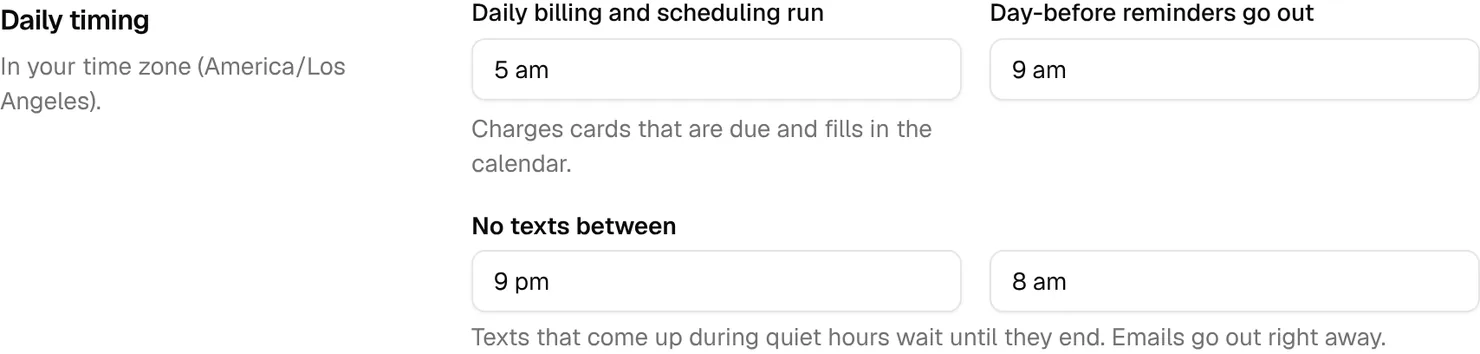
These rules carry real penalties: Florida allows damages of $500 or more per violation (keeping-customers lesson). The default quiet hours match the 8 am to 9 pm window federal rules set for marketing texts. Florida and Oklahoma are reported to stop at 8 pm, so start quiet hours earlier there.
Watch out: Review-ask texts only reach customers who also ticked the offers box. The review link in the Cleaning done text reaches everyone who gets texts, so make that one count.
Replies
Texts customers send back land on the Replies tab of Messages › Sent messages, marked Needs a reply, and are forwarded to your cell and your business email. Type an answer and click Send reply. It goes out from your business number. Email replies go to the inbox in Replies go to, under Business › Settings › Business, not into the app.
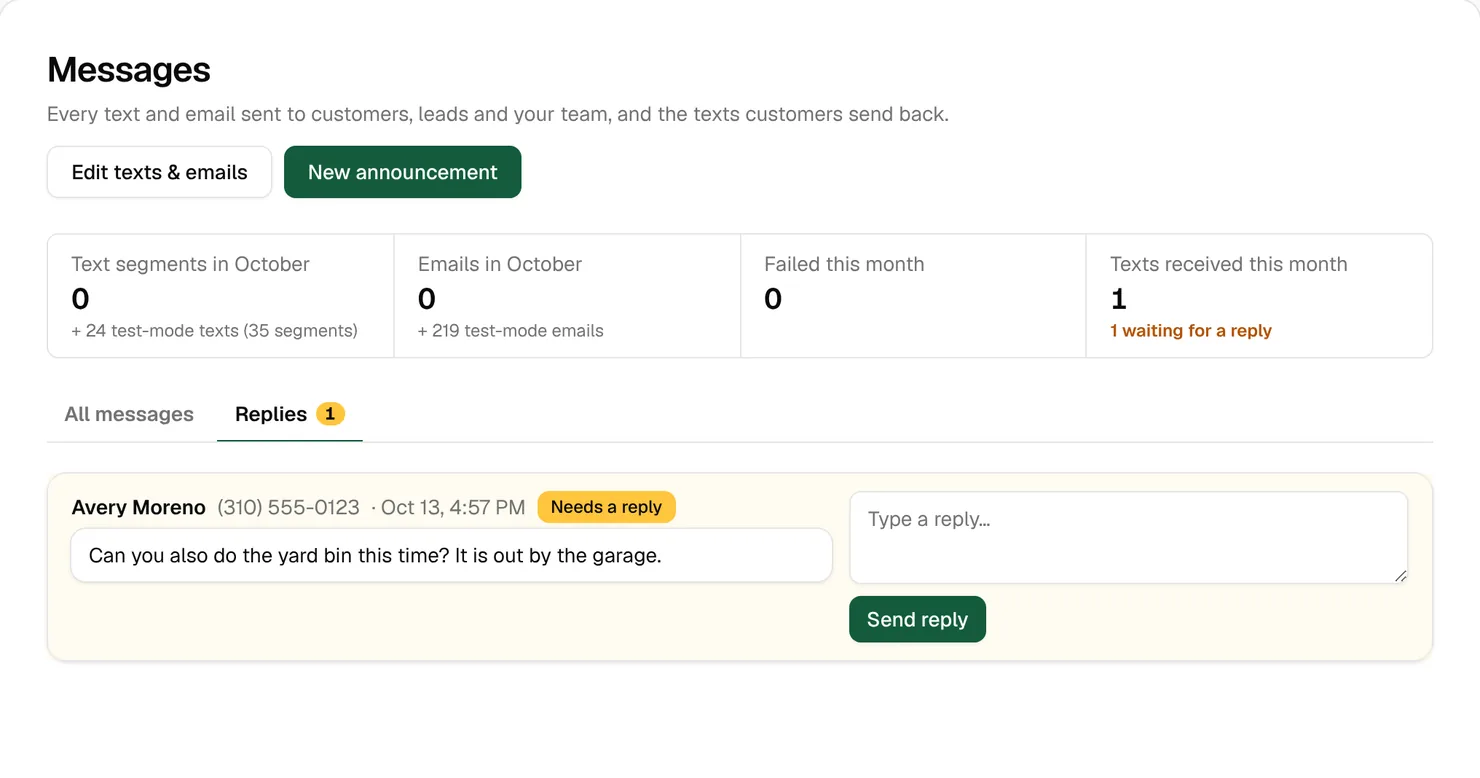
Watch out: Answered means any later text went to that number, even an automatic one. Read the text, not just the badge.
Announcements
For a holiday week, a rain delay or a new service, use Messages › Announcements. Choose who gets it under Send to: all active customers, a zone, a plan, a route group, a tag, or Customers with a cleaning on a date. Tick Text, Email or both, and send now or schedule it up to 90 days ahead. Who gets it counts the customers, texts and emails before you click Send to N customers.
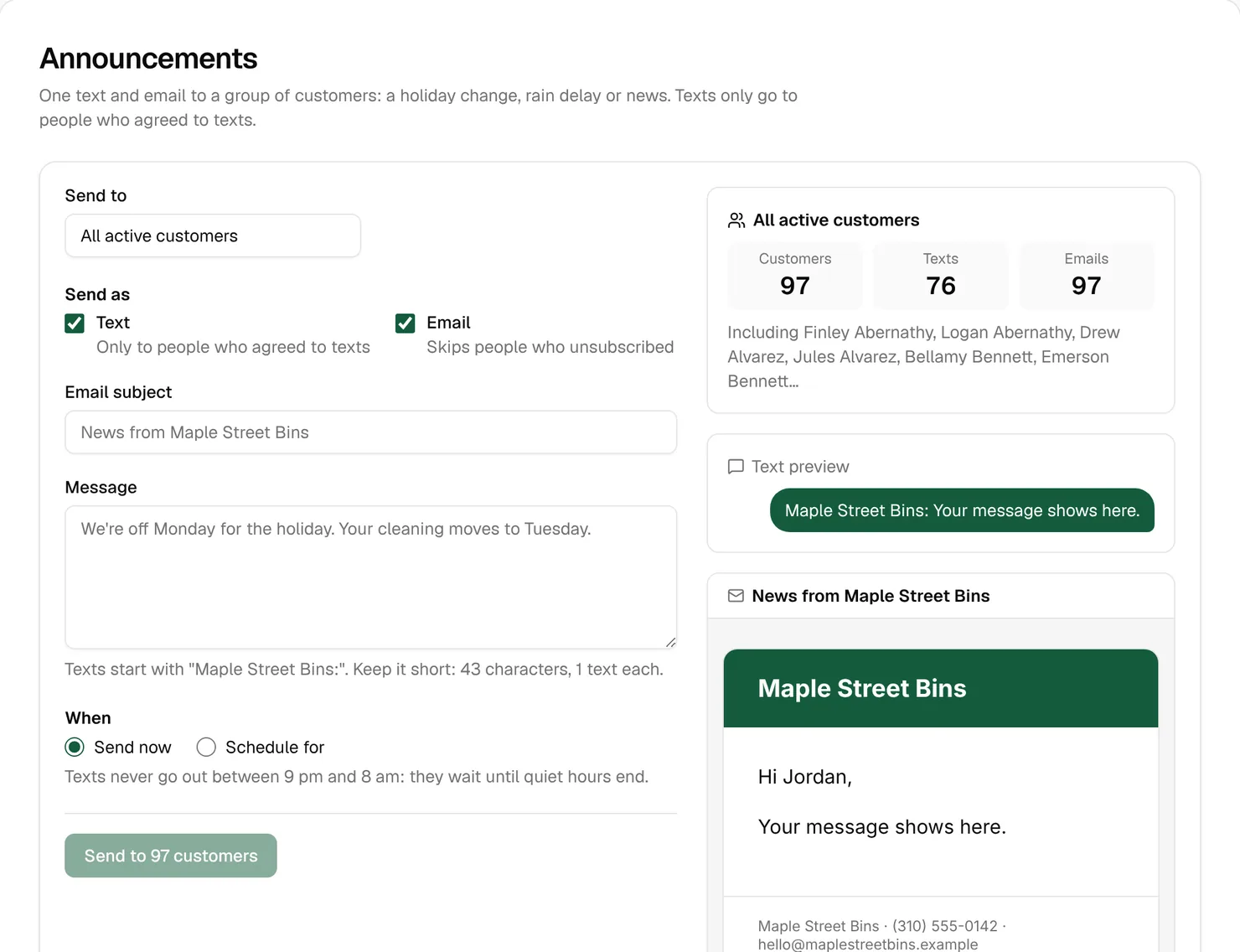
Customers with a cleaning on a date is the one for weather: one text to Thursday’s whole route. If you’re closing, also add the day in Routes › Holidays & days off so the cleanings move or skip (Lesson 4).
Key takeaways
- Clean Bin System sends 59 texts and emails on its own. Read each one once before your first real customer.
- The day-before reminder, the done messages and the failed-card texts do the most work.
- Reword the day-before and cleaning-done texts, then apply for your texting number. Approval can take two weeks.
- Texts only go to customers who agreed, stop at STOP, and wait out quiet hours.
- Answer texts on the Replies tab, and use Announcements for holidays, weather and news.
FAQ
Why didn’t a customer get the day-before text?
Usually they never agreed to texts, they replied STOP, the text was waiting out quiet hours, or your number isn’t approved yet. Search their name in Messages › Sent messages. If there’s no text there at all, they probably never agreed.
Can I turn off a message I don’t want?
Most of them. Open it, switch off Send this as a text or Send this as an email, and click Save changes. Messages marked Always on, like Card charge failed, can be reworded but not turned off.
A customer replied STOP by mistake. Can I turn their texts back on?
No. Only they can, by texting START to your business number. Until then, call or email them.
Do texts saved in test mode count toward my plan?
No. Only texts that really go out count. Your plan page lists test-mode texts separately.