Lesson 1 of 147 min read
How Clean Bin System runs a bin cleaning business
The four parts of Clean Bin System, how a customer gets on your route, what happens around every cleaning, and where the money goes.
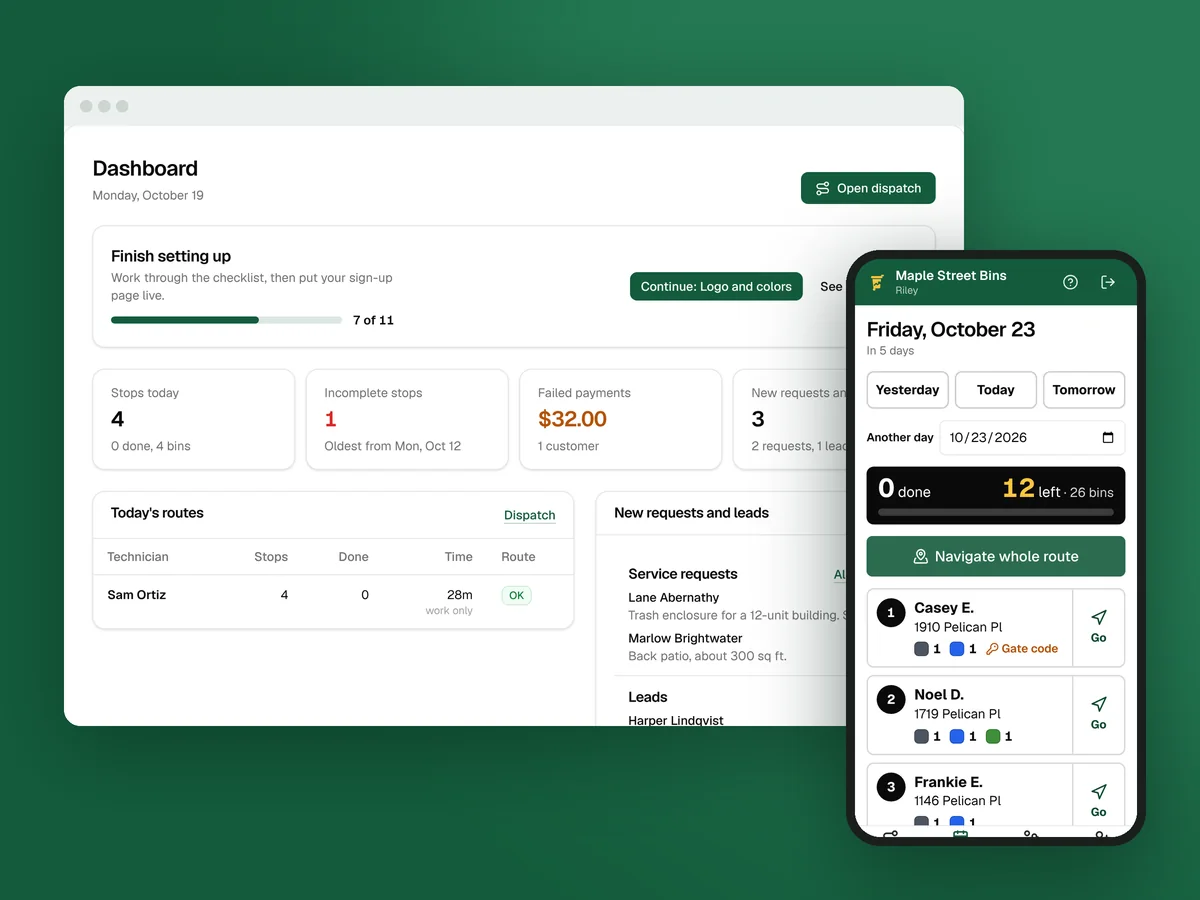
Clean Bin System runs a bin cleaning business in one place. Customers sign up and pay on your own sign-up page. Their cleanings land on their trash day. Your technicians follow the route on their phones. Reminders, receipts and card retries go out by themselves.
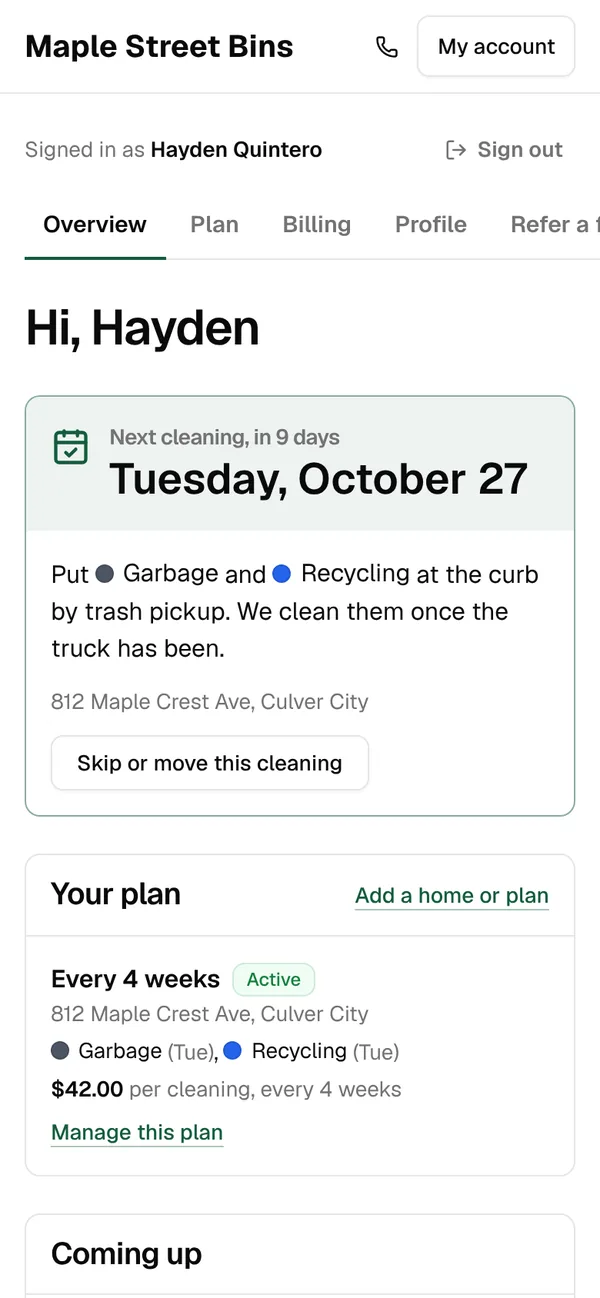
This lesson is the map. The rest of the course takes each part in turn, with the real screens. Every screen comes from Maple Street Bins, a sample business with made-up customers.
One rule decides everything
A cart can only be cleaned when it’s empty, and it’s only reliably empty right after the garbage truck. So your schedule follows trash day, not your calendar. It also decides what a day earns: in the startup course’s income model, the same trailer brings in about $1,480 a day when stops are two minutes apart and about $490 when they’re twenty minutes apart (routes lesson).
Clean Bin System is built around that rule. Every customer is placed on their trash day. A hauler’s holiday moves their week. Routes are drawn from those days. You don’t keep a separate spreadsheet of who gets cleaned when.
The four parts
| Who | Where | What they do there |
|---|---|---|
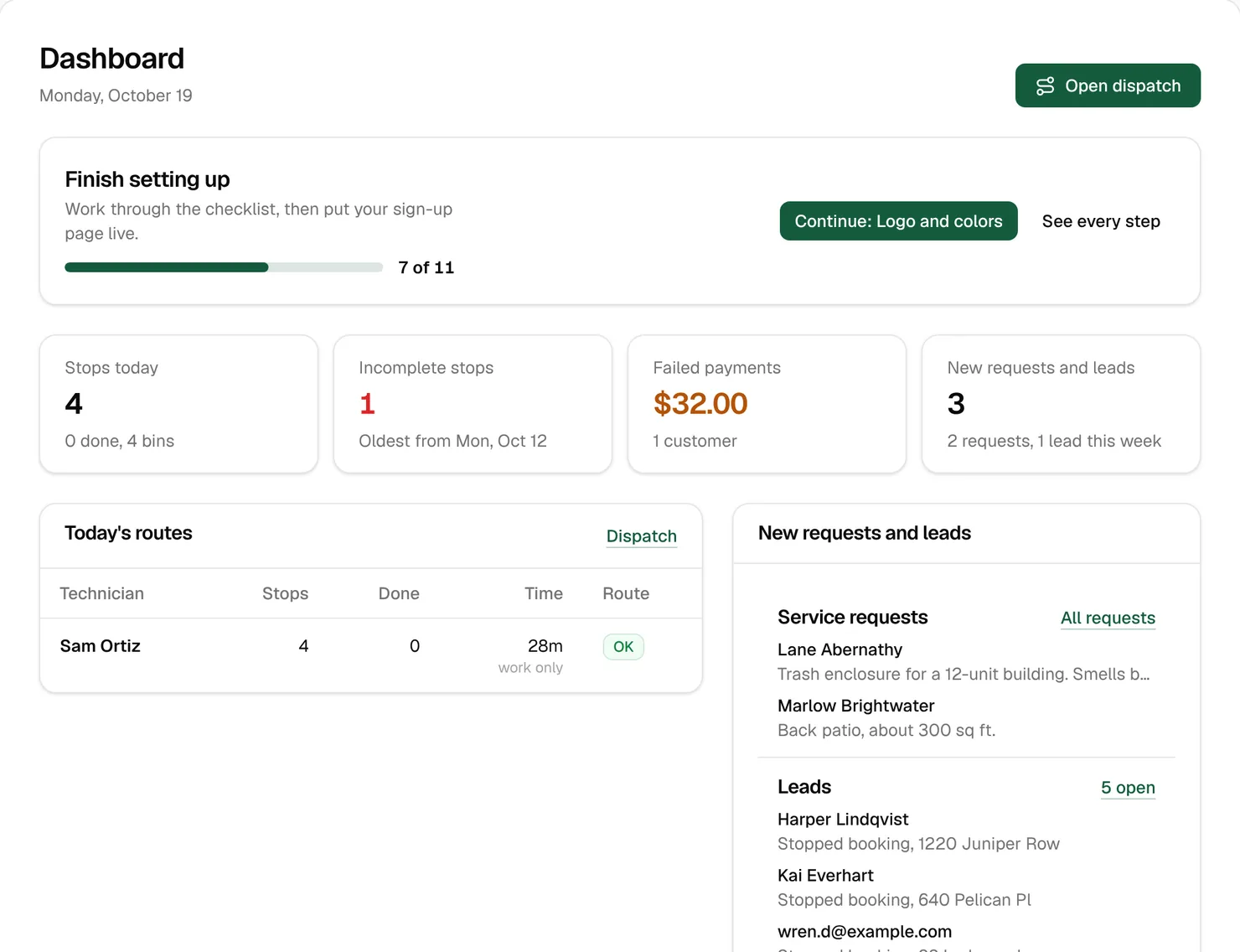
| You and your office managers | The back office | Set up the business, then run customers, routes, money and messages |
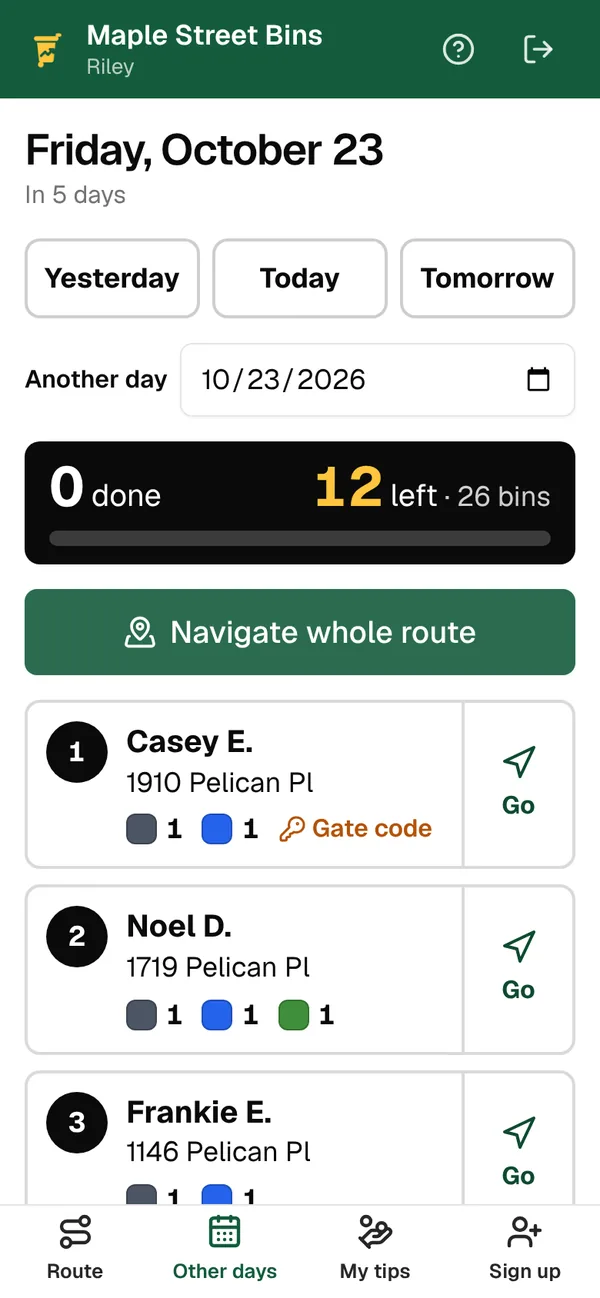
| Your technicians | The driver app, on their phone | Work the day’s stops in order, take photos, record what they cleaned |
| Your sales reps | The driver app’s Sign up tab | Sign up neighbors at their door |
| Your customers | Your sign-up page, like yourname.cleanbinsystem.com | Book, pay, and manage their cleanings in their account |
Customers never download anything. Your sign-up page and their account work in any phone browser. Technicians add the driver app to their home screen once and open it like any other app.
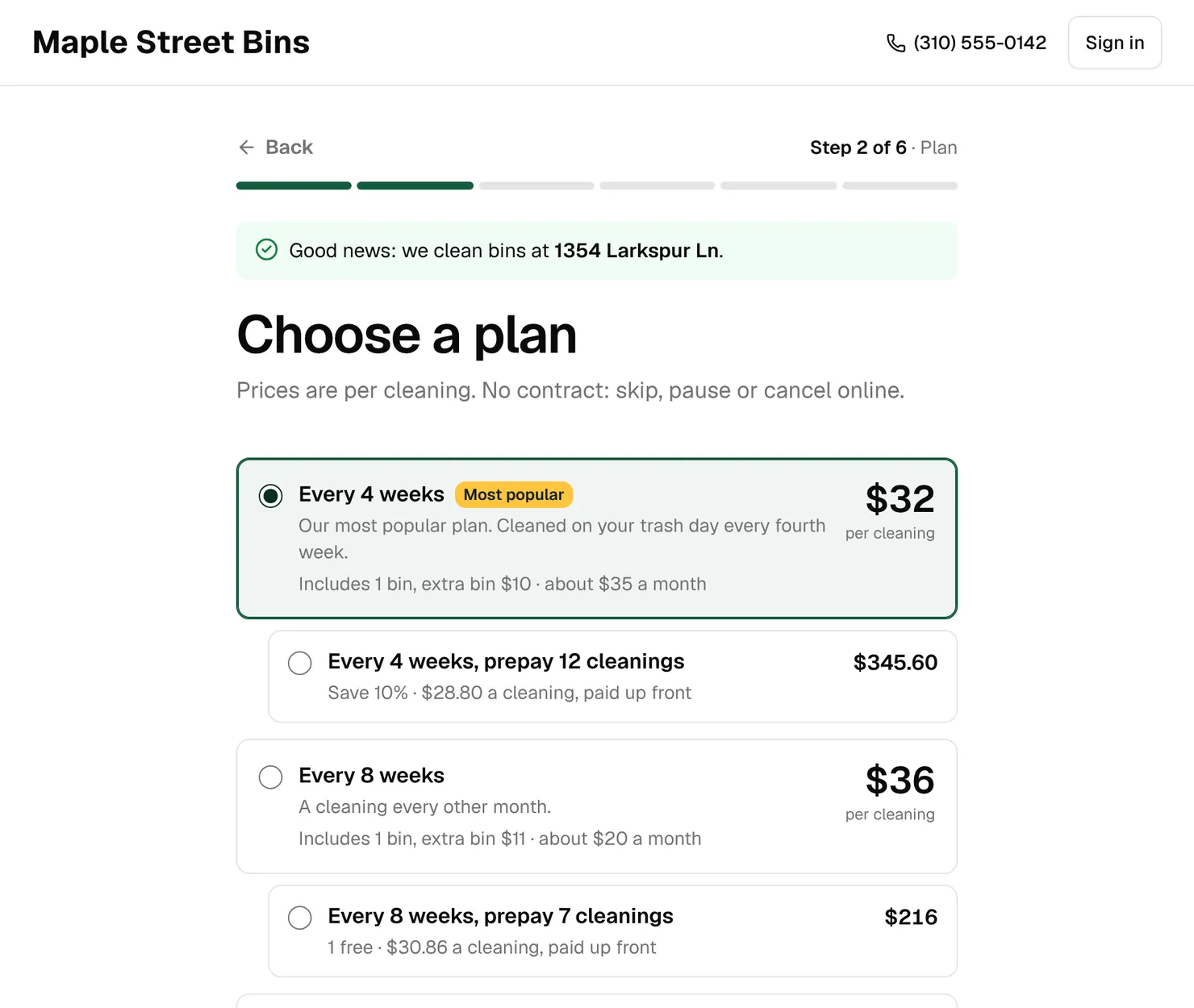
How a customer gets on your route
- They find you. Through your sign-up link, a QR code on a door hanger or your truck, a friend’s referral link, or a technician or rep at their door. You can also add a customer yourself during a phone call, or import the ones you already have.
- They enter their address. The sign-up page checks it against your zones, the areas you serve. Inside a zone, they carry on. Outside every zone, they can leave their details, and they land in Customers › Leads so you can tell them when you start serving their street.
- They choose a plan and their bins. A plan is how often you clean: every 4, 8 or 12 weeks, or one time. They pick how many of each bin and see the price as they go.
- They add a card and book. The card is saved in your Stripe account. They get a welcome message, and you get an email that a new customer signed up.
- Their cleaning days are set. The first cleaning goes on their trash day, at least 2 days after they book unless you change that. The rest follow their plan.
Online sign-ups start as Pending and turn Active when they finish the payment step: once the first charge goes through, or once the card is saved if you charge on the normal schedule. Customers you add yourself start Active.
What happens around each cleaning
Once a customer is on a plan, every cleaning follows the same steps, and the messages go out on their own:
- Two days before, the card is charged. Any account credit is used first. The customer gets a “payment received” text and email, and a receipt by email. You can change the timing in billing settings (Lesson 7).
- The day before, a reminder goes out at 9 am unless you change the hour: the day-before text and email, with which bins to leave out.
- On the day, the technician works the route in the order set in Routes › Dispatch. Tapping On my way texts the customer.
- When every bin is marked cleaned, the customer gets the cleaning-done message, with a link to the after photos, your review link and a tip link if you use them. If a bin wasn’t out, was blocked or was damaged, they get the “with problems” version instead.
- If a card fails, the customer gets a text and email with a link to update it, and the charge is tried again by itself 1, 2, 4, 7, 10, 15 and 20 days later, then monthly. Everyone who owes you is on the Unpaid tab of Money › Payments.
Without software, all of that is office work: charging cards, texting reminders, chasing failed payments. Here it runs on its own, and you step in only when something needs a person: a card that keeps failing, a bin that wasn’t out, a customer who replies with a question.
Tip: Read every automatic message before your first real customer. Each one has a preview and a test send to yourself. Lesson 11 shows how to change the wording.
What moves a cleaning
- A trash hauler’s holiday. When trash day moves later, that hauler’s customers move with it (Lesson 4).
- Your own days off. A shutdown closes you: cleanings that day are skipped or moved, and skipped ones aren’t charged. On a holiday you still clean regular customers, but nobody new starts.
- The customer. In their account they can skip, move or pause a cleaning, change their plan or bins, and update their card.
- You. A customer’s page in Customers › Customers has every change they can make, and more (Lesson 10).
Where the money goes
Your customers pay your business, not Clean Bin System. Charges go into your own Stripe account, and Stripe pays them out to your bank on your payout schedule. Money › Payments lists every charge, refund, tip and gift card sale.
Stripe keeps its processing fee. The pricing page says whether Clean Bin System takes a platform fee on card payments, and it never takes one from tips. What Clean Bin System charges you for your plan is on your plan page: Starter is $89 a month for 1 technician, Growth $179 for up to 4 technicians and Pro $329 for any number of technicians.
Test mode
You can set everything up before any money or texts move. Until you connect Stripe, cards go through a built-in test processor and nothing is real. Until your texting number is approved, every text is saved in Messages › Sent messages but not sent. A Test mode banner at the top of every page says which of the two is still in test.
The menu at a glance
The back office menu follows the work:
- Dashboard: today’s routes, what needs attention and this month’s numbers.
- Learning center, right under Dashboard: a guide for every page.
- Routes: Dispatch, Calendar, Zones, Trash haulers, Holidays & days off, and the Driver app.
- Customers: the customer list, Leads, Service requests and Import.
- Money: Payments, Invoices & quotes, Tips, Coupons and Gift cards.
- Messages: Sent messages and replies, Texts & emails, and Announcements.
- Business: Plans & prices, QR codes, Get more customers, Reports, Team, Settings and Help.
At the bottom of the menu, Sign-up page opens your sign-up page in a new tab, so you can check what customers see. Most of the switches that shape everything else live in Business › Settings, one page per area.
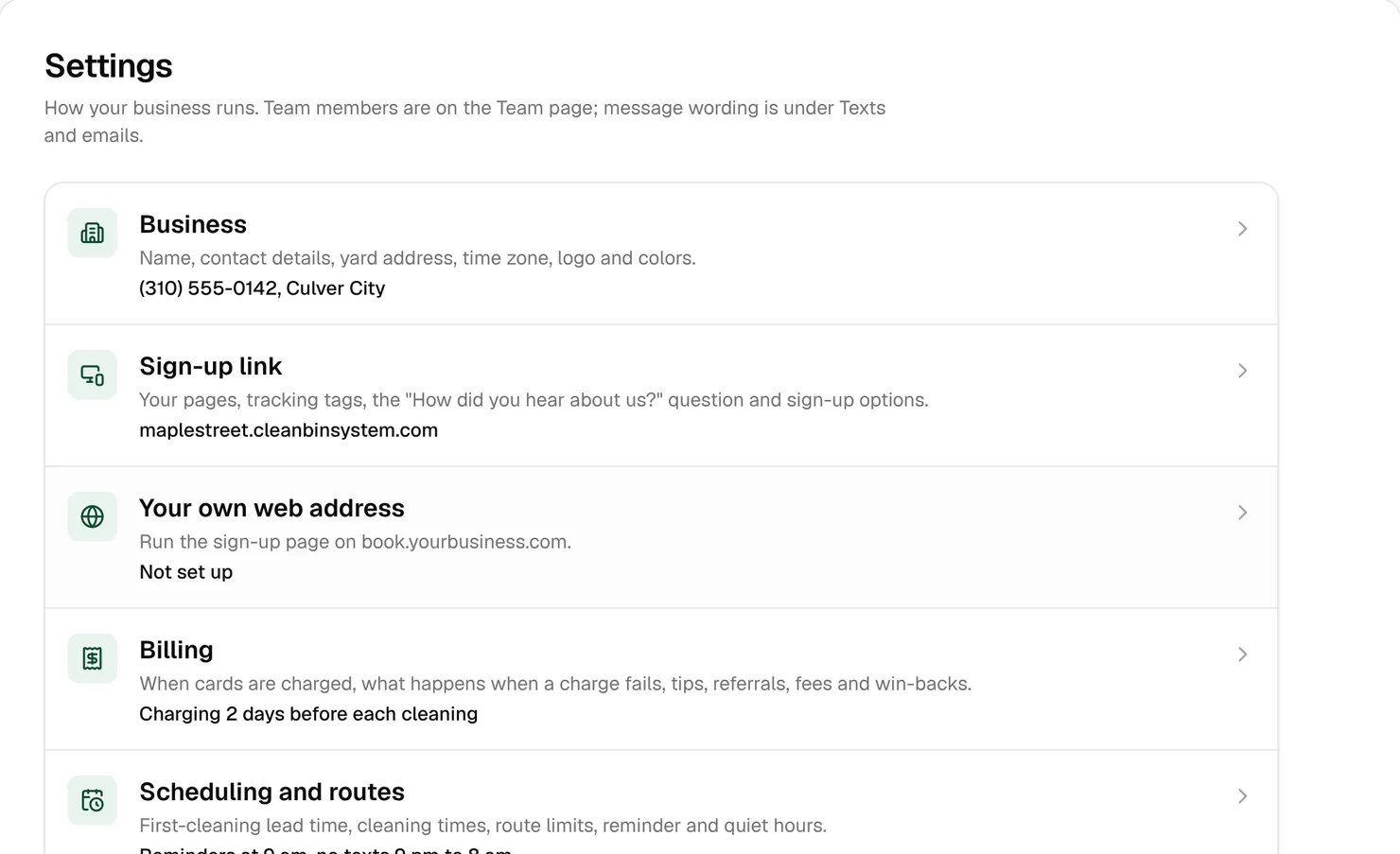
Lost on a page? Help in the bottom corner of every back-office page opens the Learning center guide for that page. The guides cover every field. This course covers what to set up, in what order, and why.
Key takeaways
- Clean Bin System has four parts: your sign-up page, the back office, the driver app and each customer’s account.
- Everything is scheduled from trash day, because that’s the only time a cart is reliably empty.
- Around each cleaning, the charge, the reminder, the on-the-way text, the done message and any card retries go out by themselves.
- Money goes into your own Stripe account and out to your bank.
- You can set up everything in test mode before real cards or texts are involved.
FAQ
Do my customers need to download an app?
No. They sign up and manage their account in a phone or computer browser. Only your technicians add the driver app to their home screen.
Can I try Clean Bin System before I connect Stripe or get a texting number?
Yes. Cards run on a test processor and texts are saved but not sent until you connect Stripe and your number is approved. You can make a full test booking in the meantime (Lesson 2).
What does each person on my team see?
Owners and office managers get the back office. Technicians land in the driver app with their own route. Sales reps get a smaller driver app with Home and Sign up.
Where do I start?
With the setup checklist, in the order in Lesson 2. Most steps take a few minutes. The texting number takes days, because carriers review it, so start it early.