Switching
Bring your customers. Keep their cleaning days.
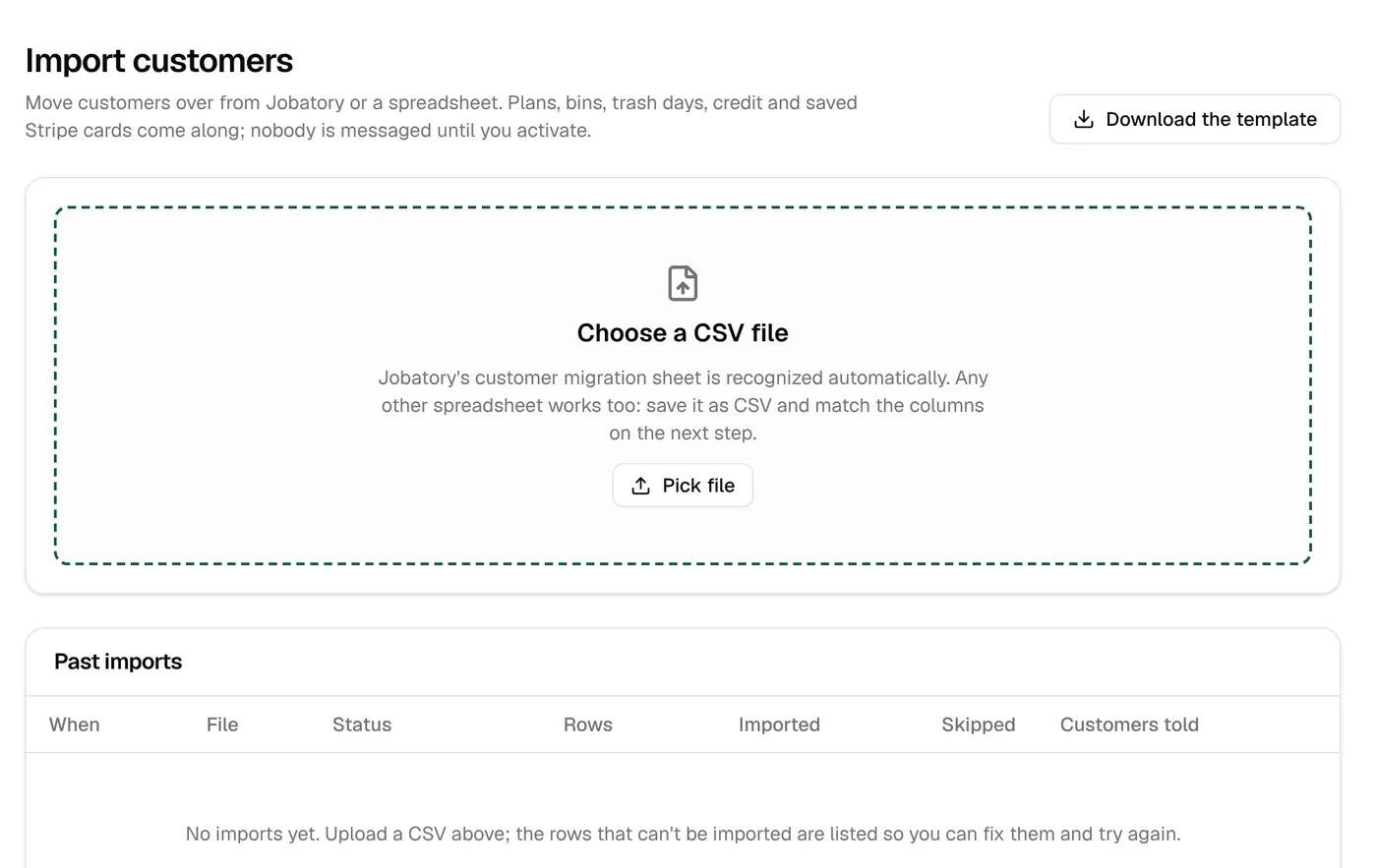
Import your list from Jobatory or a spreadsheet. Plans, bins, trash days and last cleanings come over, saved cards keep working on the same Stripe account, and nothing is sent to anyone until you say go.
What comes over
Your customers arrive ready for their next cleaning.
| What | From Jobatory | From a spreadsheet |
|---|---|---|
| Customers and contacts | Yes | Yes |
| Addresses, gate codes and notes | Yes | Yes |
| Plan, bins and trash days | Yes, matched to your plans | Yes, matched to your plans |
| Last cleaning date | Yes, so each plan keeps its rhythm | Yes, if your sheet has it |
| Saved cards | Yes, when you connect the same Stripe account | Customers get a link to add one |
| Account credit | Yes | Yes |
| How they heard, trash hauler, old ID | Yes | Yes, if your sheet has them |
| Canceled customers | Kept as history | Kept as history |
How it works
Five steps, usually one afternoon.
Set up your area and plans
Draw your zones and set your plans first, so each customer has somewhere to land.
Export your list
Jobatory’s customer migration sheet, or any spreadsheet saved as a CSV file.
Match the columns
Jobatory’s sheet is recognized on its own. For anything else, you match each column once, then each plan name to one of your plans.
Check every row
Every row is checked before anything is saved. Duplicates are skipped and anything that can’t be read is listed for you to fix.
Activate in batches
Each plan is scheduled from its last cleaning, and each customer gets a welcome message, or a link to add a card if they need one.
Connect the Stripe account Jobatory charged through and saved cards carry over. Run both side by side for one cycle, and turn off charging in Jobatory before you activate here.
The columns we read
Everything a bin cleaning customer record needs.
Download the template from the import page, or bring your own sheet and match the columns.
The customer
- Old system ID
- First and last name, or full name
- Business name
- Email and mobile
- Text opt-in
- How they heard about you
- Stripe customer ID
- Account credit
The home
- Street address, apartment, city, state, ZIP
- Map location, if you have it
- Gate code
- Access notes for the technician
- Trash hauler
The plan and bins
- Plan status and plan name
- Last cleaning date
- Garbage, recycling and yard waste: how many
- Each one’s pickup frequency and trash day
- A recent pickup date for every-other-week bins
Questions
About switching
Do my customers have to sign up again?
No. They’re imported with their plan, bins and trash day, and keep their place in your schedule. They can sign in to their account with a link sent by text or email.
Will anyone be charged twice?
Not if you turn off charging in your old system before you activate here. The safe way: run both side by side for one cycle, then switch charging over on a date you pick.
What about customers who pay by cash or check?
Customers you add from the office can pay by invoice after each cleaning, and you can record cash or a check against any invoice. Imported customers start out paying by card.
My cards are with a different processor. What happens?
Saved cards can only move between Stripe accounts. Customers without a usable card get a text and email with a link to add one when you activate them.
What prices do imported customers get?
The prices of the plan you match them to. Set up your plans and price lists first so they match what customers pay today.
How big a list can I bring?
Up to 20,000 rows in one file, and you can import more than one file.
Can I try it before I move everyone?
Yes. Your account starts in test mode, so you can import, look everything over and activate a few customers before the rest.
Move your customers over this week.
3 days free with every feature, and nothing is charged until the trial ends. Everything begins in test mode, so nothing reaches your customers until you’re ready.